

 HANDS ON SharePoint
 HANDS ON Teams
 HANDS ON Lists
 HANDS ON tek
 M365 Admin
How to Block File Downloads in SharePoint and OneDrive (What’s Possible, What Isn’t, and What Actually Works)
Blocking file downloads in SharePoint is one of those requests that sounds simple and turns complex very quickly.
It usually starts with a reasonable concern. Sensitive documents. External users. Unmanaged devices. A clear instruction from security or legal: ‘People should be able to read this, but they shouldn’t be able to download it.’
For years, the honest answer was uncomfortable. You could make downloads harder, but you couldn’t truly block them without workarounds, custom permission levels, or conditional access gymnastics. And even then, the guarantees were weak.
That changed with the introduction of the Block download policy for SharePoint and OneDrive, part of SharePoint Advanced Management. This is the first supported, platform‑level way to enforce browser‑only access to files, without redesigning your permission model or relying on unsupported UI tricks.
Why organizations want to block downloads in the first place
This is not about stopping determined users. If someone can see content, they can always find a way to capture it. What organizations are trying to prevent is something more common and more dangerous: casual exfiltration.
A file synced to a personal device. A PDF downloaded ‘just in case.’ A OneDrive sync client quietly copying sensitive material to a laptop that is not managed, not encrypted, and not monitored.
In those scenarios, the goal is not perfect control. The goal is containment. Keep the content inside Microsoft 365. Keep access auditable. Reduce accidental exposure.
The block download policy is designed exactly for that.
What the Block Download Policy actually does
When the policy is enabled on a SharePoint site or OneDrive location, users can still access files, but only through the browser.
Specifically, it enforces these behaviors:
- Files open in the web experience only
- Download, print, and sync actions are disabled
- Access through desktop Office apps is blocked
- OneDrive sync cannot be used for that site
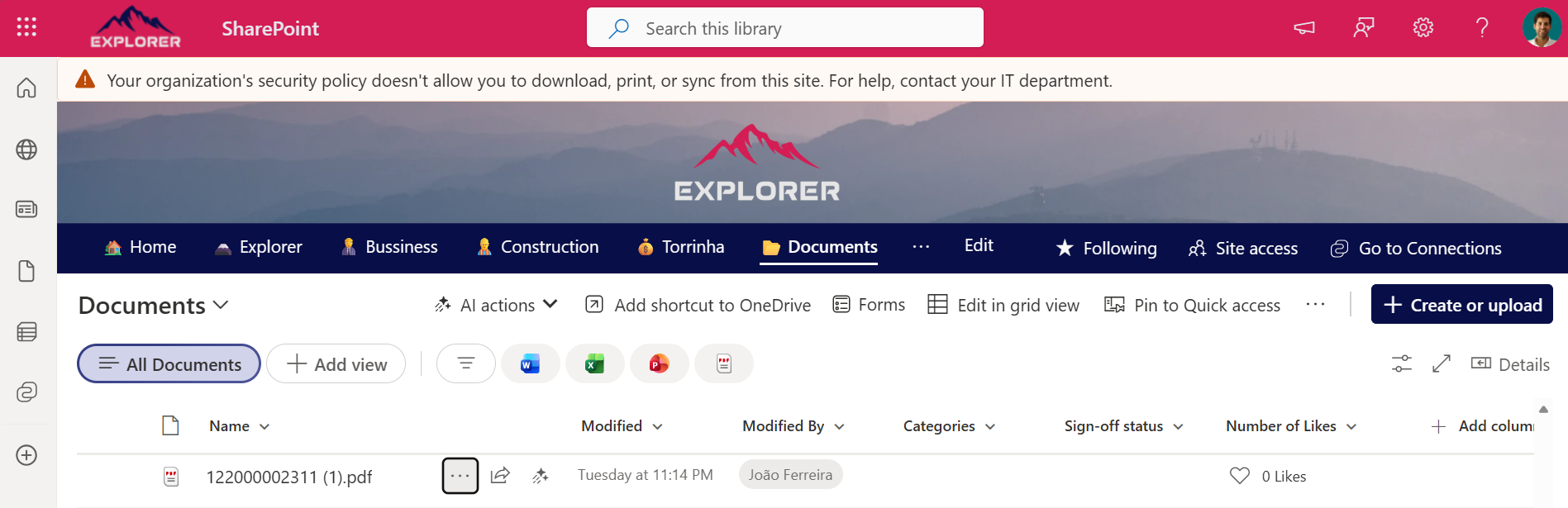
- Users see a clear banner explaining that downloads are restricted
This is not a permission trick. It does not rely on hiding buttons or modifying views. It is enforced at the service level.
The policy applies at the site level, not per library or per file. That design choice is intentional and important. This is about defining sites that are ‘view‑only by design,’ not selectively locking down individual documents.
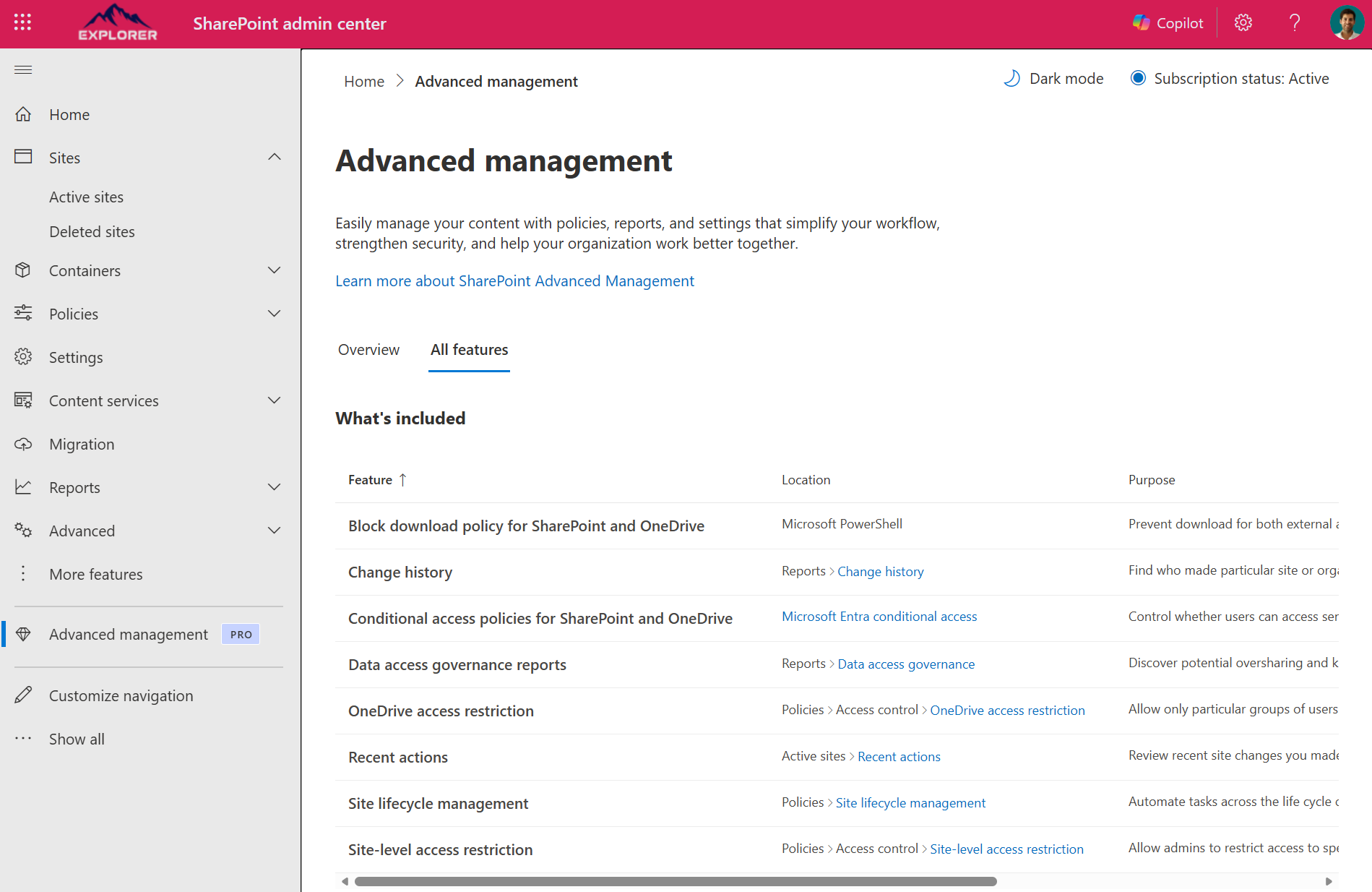
Where this feature lives: SharePoint Advanced Management
The block download policy is part of SharePoint Advanced Management, sometimes referred to as Advanced Management Pro in tenant discussions.
You will not find a toggle for this in standard site settings.
Access to this capability depends on licensing:
- Your tenant must have a supported Microsoft 365 base license (E1, E3, E5, or equivalent)
- In addition, you need either:
- At least one Microsoft 365 Copilot license assigned in the tenant, or
- A standalone SharePoint Advanced Management license
If your tenant has Copilot, SharePoint administrators automatically gain access to the Advanced Management feature set needed to configure this policy. Without Copilot, the Advanced Management license must be purchased separately.
Enabling the Block Download Policy with PowerShell
This policy is applied using the SharePoint Online Management Shell.
At a high level, the flow is simple:
- Connect to the SharePoint admin endpoint
- Apply the policy to a specific SharePoint site or OneDrive URL

Once enabled, the change takes effect quickly and is enforced consistently.
Example for a SharePoint site:
Set-SPOSite -Identity https://contoso.sharepoint.com/sites/ProtectedContent -BlockDownloadPolicy $true
Example for a OneDrive location:
Set-SPOSite -Identity https://contoso-my.sharepoint.com/personal/user_contoso_com -BlockDownloadPolicy $true
After you enable the policy, SharePoint shows a banner at the top of the site warning users that they can’t download, print, or sync content from that site.
PowerShell options you can combine with download blocking
The base switch is useful, but the real power comes from combining it with additional parameters on the same cmdlet. These options allow you to fine‑tune who is affected and how restrictive the site becomes.
Excluding site owners
In some scenarios, site owners still need full access for operational reasons. You can allow owners to bypass the download restriction:
Set-SPOSite -Identity https://contoso.sharepoint.com/sites/ProtectedContent -BlockDownloadPolicy $true -ExcludeBlockDownloadPolicySiteOwners $true
Excluding specific groups
You can also exempt specific Microsoft 365 or security groups by ID. This is useful when a small internal group needs broader access while everyone else remains browser‑only.
Set-SPOSite -Identity https://contoso.sharepoint.com/sites/ProtectedContent -ExcludedBlockDownloadGroupIds "<comma separated group IDs>"
If you prefer to exclude SharePoint groups instead there is also an option for that
Set-SPOSite -Identity https://contoso.sharepoint.com/sites/ProtectedContent -ExcludeBlockDownloadSharePointGroups "<comma separated group name>"
Combining download blocking with read‑only mode
For high‑risk sites, you can push this further and enforce a read‑only experience alongside download blocking. This is particularly useful for archival, legal, or executive content where collaboration is not the goal.
Set-SPOSite -Identity https://contoso.sharepoint.com/sites/ProtectedContent -BlockDownloadPolicy $true -ReadOnlyForBlockDownloadPolicy $true
These parameters are often overlooked, but they are what make the policy usable in real organizations, not just demos.
Important limitations to understand upfront
This policy is powerful, but it is not magic. You should be clear about these constraints before rolling it out:
- It applies at the site level only
- It does not selectively block individual libraries or files
- It does not stop screenshots or manual copying
- It does not override other access controls, it complements them
This is not a replacement for sensitivity labels, conditional access, or good permission design. It is a strong additional layer when the goal is to keep content inside the browser.
Final thoughts
For a long time, ‘disable download in SharePoint’ was a misleading question. The platform simply did not offer a clean, supported answer.
With SharePoint Advanced Management, that has changed. Not by promising absolute protection, but by giving administrators a clear, enforceable way to keep content inside Microsoft 365 and reduce accidental data loss.
Used deliberately, and combined with the right site design and permissions, the block download policy is one of the most practical governance tools SharePoint has gained in years.
If you treat it as a switch you can flip everywhere, it will frustrate users. If you treat it as a site‑level design choice, it works exactly as intended.






February 24, 2026
What if most users prefer to work on a document in the desktop app? It is a far superior machine, specifically when it comes to content editing. How would you block downloads from the rest of that list, but allow desktop apps to run them?
February 27, 2026
On that case this feature shouldn’t be used. This is for scenarios where you don’t have collaboration and work being done, its for “read-only” repositories that need to be more restrict. You can always exclude the users that need to manage the documents using the PowerShell cmdlet and those will be able to continue to use the desktop applications.