

 HANDS ON SharePoint
 HANDS ON Teams
 HANDS ON Lists
 HANDS ON tek
 M365 Admin
How to add a custom card to Viva Connections and why it matters
Adding a custom card to Viva Connections is one of those small changes that quietly transforms how people use SharePoint and Microsoft Teams day to day. Technically, it’s simple: Viva Connections dashboards support personal Quick Links cards that any user can add, reorder, and maintain without waiting for an administrator. These cards live side‑by‑side with the standard dashboard experience, but with a personal twist that finally gives users a sense of ownership.
This guide walks you through everything you need to know to get this working in your tenant.
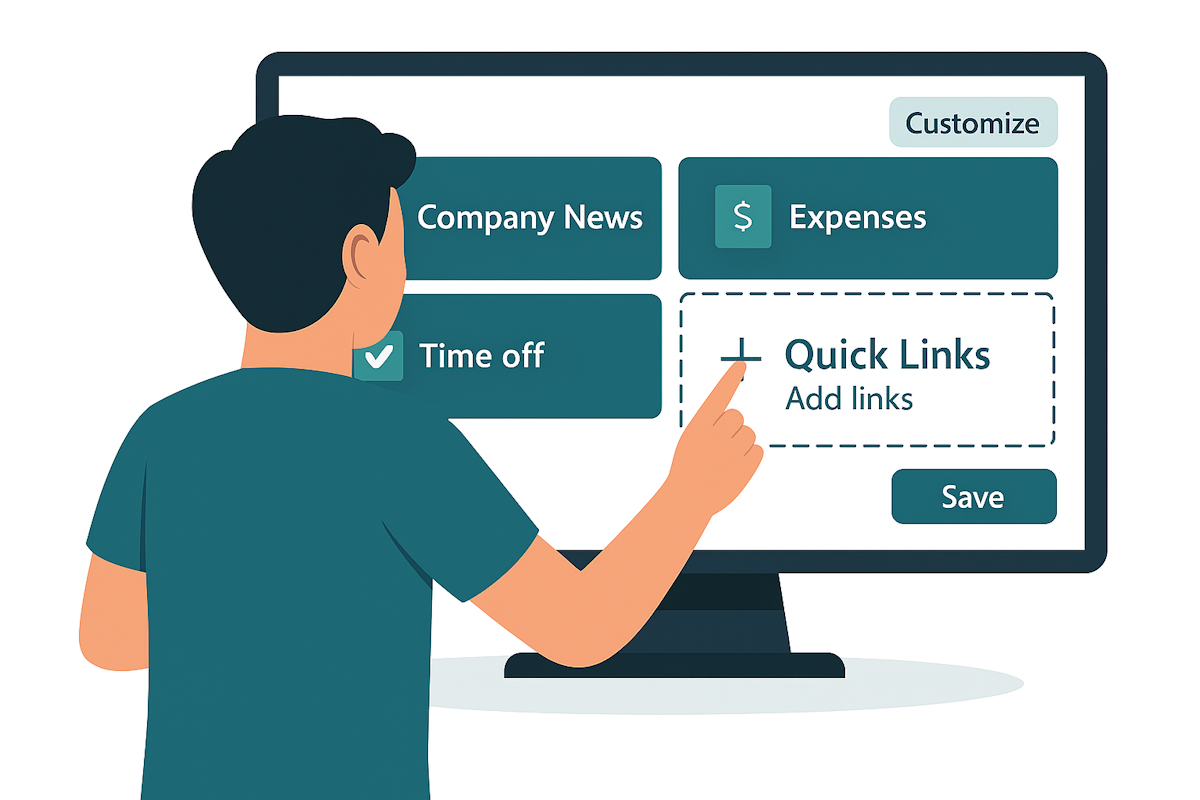
Why personalization matters for adoption
- Relevance drives engagement. People interact more when the content reflects their work.
- Reduced friction. No more digging through navigation or old bookmarks; the dashboard becomes a launchpad.
- Ownership increases satisfaction. When users can tune the experience, they feel more in control.
- Less pressure on admins. Not every tweak needs an administrator. Users can help themselves.
Customization isn’t about aesthetics, it’s about making sure the dashboard earns a place in someone’s daily workflow.
How to add a custom Quick Links card
- Open Viva Connections – Open Microsoft Teams and go to the Viva Connections app. On desktop, scroll to the Dashboard
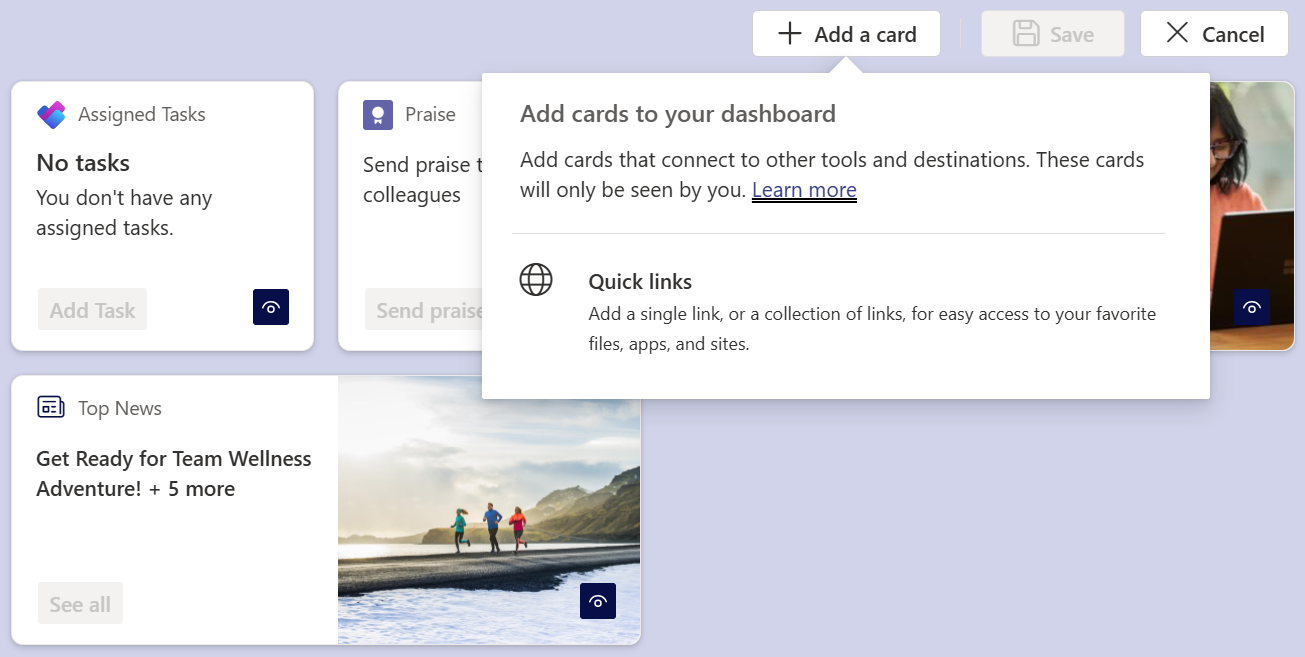
- Enter customization mode – Select Customize at the top of the dashboard. You’ll notice each card highlight its editable state.
- Add a new card – Choose Add a card → Quick Links.
This creates a blank card where you can configure:- Title
- Icon or image
- Up to 20 personal links
- Card size
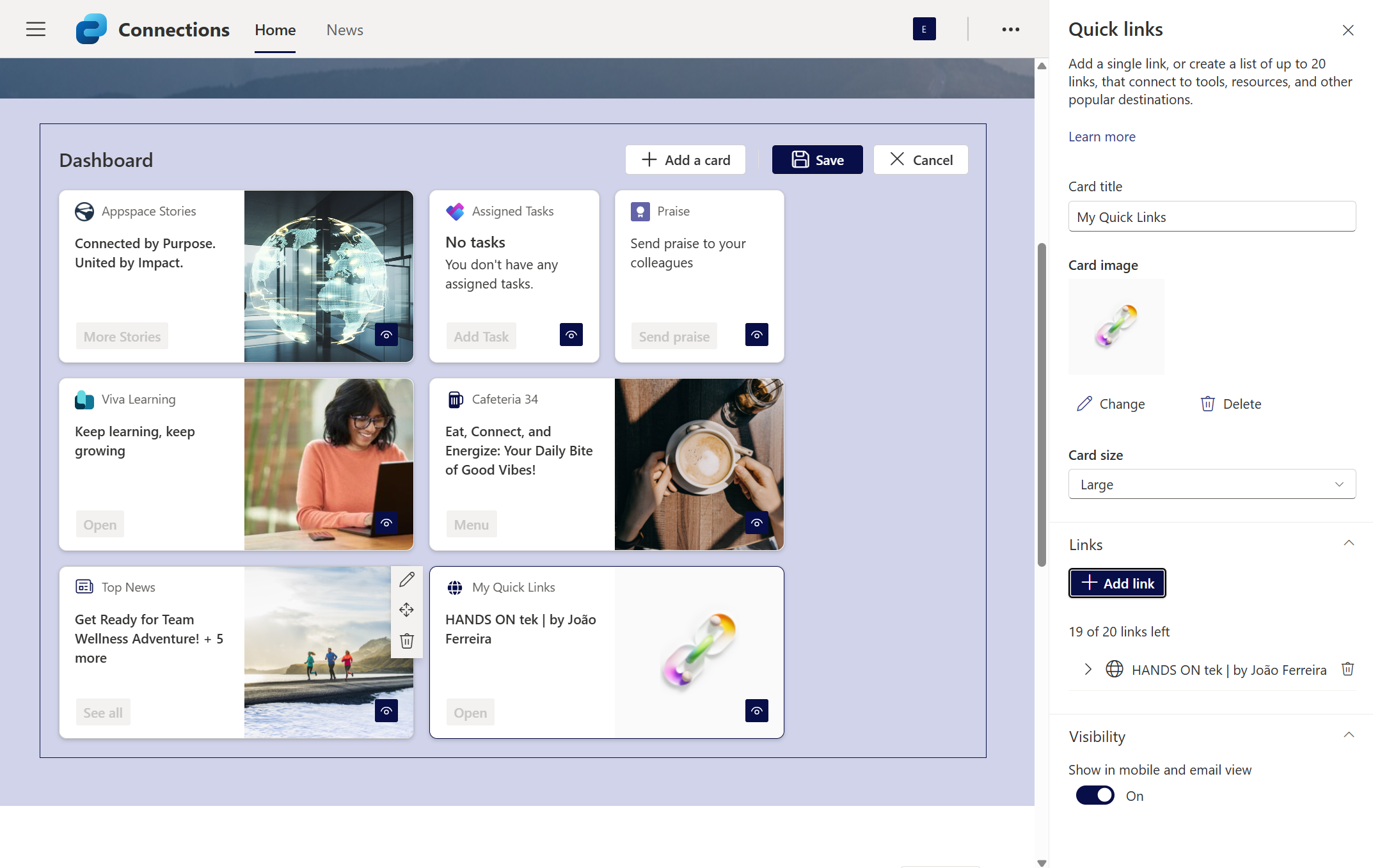
- Add your links – Inside the card properties, select Add link. Paste the URL or pick a SharePoint page or file. Each link can be renamed or reordered.
- Save your dashboard – When you’re done, select Save, and the personalized card becomes part of your dashboard on all devices.
Considerations + limitations
Technical constraints
- Personal cards don’t replace admin‑managed cards; they complement them.
- Quick Links is the only card available at the moment
- Quick Links cards are simple link containers, not full interactive apps.
Known gaps
- No cross‑user sharing: a personal card is always personal.
- No conditional visibility or dynamic data binding like full SPFx cards.
Conclusion
If your organization wants to improve productivity, streamline daily workflows, and encourage people to actually use the intranet and Teams as intended, personal Quick Links cards are a tiny feature with a huge impact.
Whether you’re running a large enterprise or a small team, personalization helps your Viva Connections experience feel less like a corporate announcement board and more like a home screen people genuinely rely on.






No comments yet