

 HANDS ON SharePoint
 HANDS ON Teams
 HANDS ON Lists
 HANDS ON tek
 M365 Admin
How to Rename a SharePoint Site and Change Its URL Without Breaking Everything
For a long time, renaming a SharePoint site was treated as a mistake you paid for forever. Pick the wrong name, live with it. URLs were fragile, links broke, and the safest advice was simple: don’t touch it.
That advice is outdated! SharePoint supports renaming sites and changing their URLs in a controlled, supported way. The risk today is not the platform. It’s the assumption that nothing has changed.
This article explains why renaming a SharePoint site matters, what actually happens when you do it, and how to do it safely.

Why renaming a SharePoint site matters
SharePoint site names are not cosmetic. They show up everywhere: Teams, Planner, Loop, Power Automate, shared links, bookmarks, and external access.
That’s why bad names stick. A pilot site becomes permanent. A project code survives years longer than the project. A department rebrands, but the SharePoint URL still reflects the old structure. People adapt, but clarity suffers, especially for new users, external users, search, and AI‑driven discovery.
What happens when you rename a site
When you rename a site, SharePoint keeps the same site ID. Permissions, files, and version history remain intact. Nothing is moved.
Existing links continue to work through redirects. Teams connected to the site still function. Planner plans and OneNote notebooks follow the site. There are limits. Hard‑coded URLs in custom solutions may need review. Some third‑party tools do not respect redirects. This is why awareness and validation are still required.
Rename a SharePoint site from the SharePoint admin center
This is the simplest and most common approach. You must be a SharePoint or Global Administrator. The site must be a modern team or communication site.
- Go to SharePoint admin center → Sites → Active sites.
- Select the site you want to rename.
- In the General tab, select Edit next to the site name and URL.
- Update the Site name (display only, optional).
- Update the URL (last part only).
- Review the redirect warning and confirm.
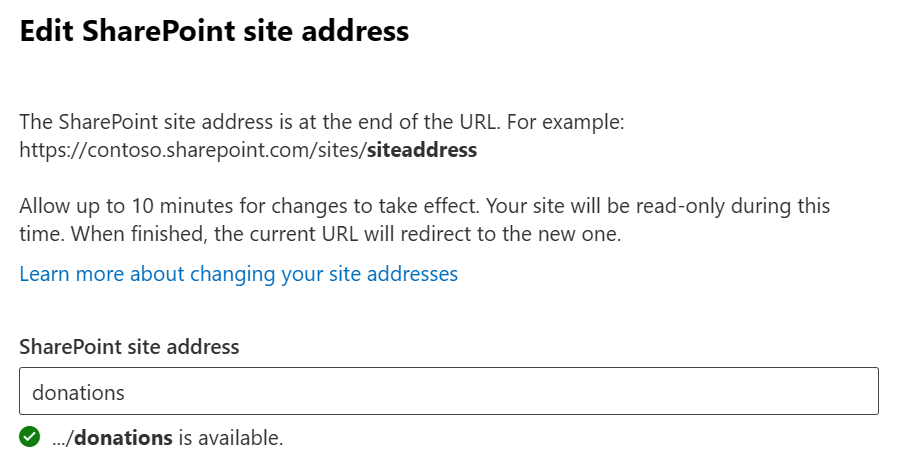
The change is processed automatically. The site may be briefly unavailable. Once complete, the old URL redirects to the new one.
Rename a SharePoint site using PowerShell
PowerShell is useful for automation or bulk operations.
- Connect to SharePoint Online:
- Rename the site:
Connect-SPOService -Url https://<tenant>-admin.sharepoint.com
Rename-SPOSite -Identity https://<tenant>.sharepoint.com/sites/OldSiteUrl -NewSiteUrl https://<tenant>.sharepoint.com/sites/NewSiteUrl -NewSiteTitle "New Site Name"
Admin center or PowerShell?
Use the admin center for one‑off governance changes and visibility. Use PowerShell for scripted or repeatable operations.
The backend behavior is the same. The difference is control.
Final Thoughts
Renaming a SharePoint site is no longer something to fear. It is also not something to do casually.
It is a governance decision. Done intentionally, it improves clarity, trust, and discoverability. Avoided out of habit, it leaves organizations with structures that no longer reflect how they work.
SharePoint supports change. Governance decides when to use it.






No comments yet