How to Block File Downloads in SharePoint and OneDrive (What’s Possible, What Isn’t, and What Actually Works)

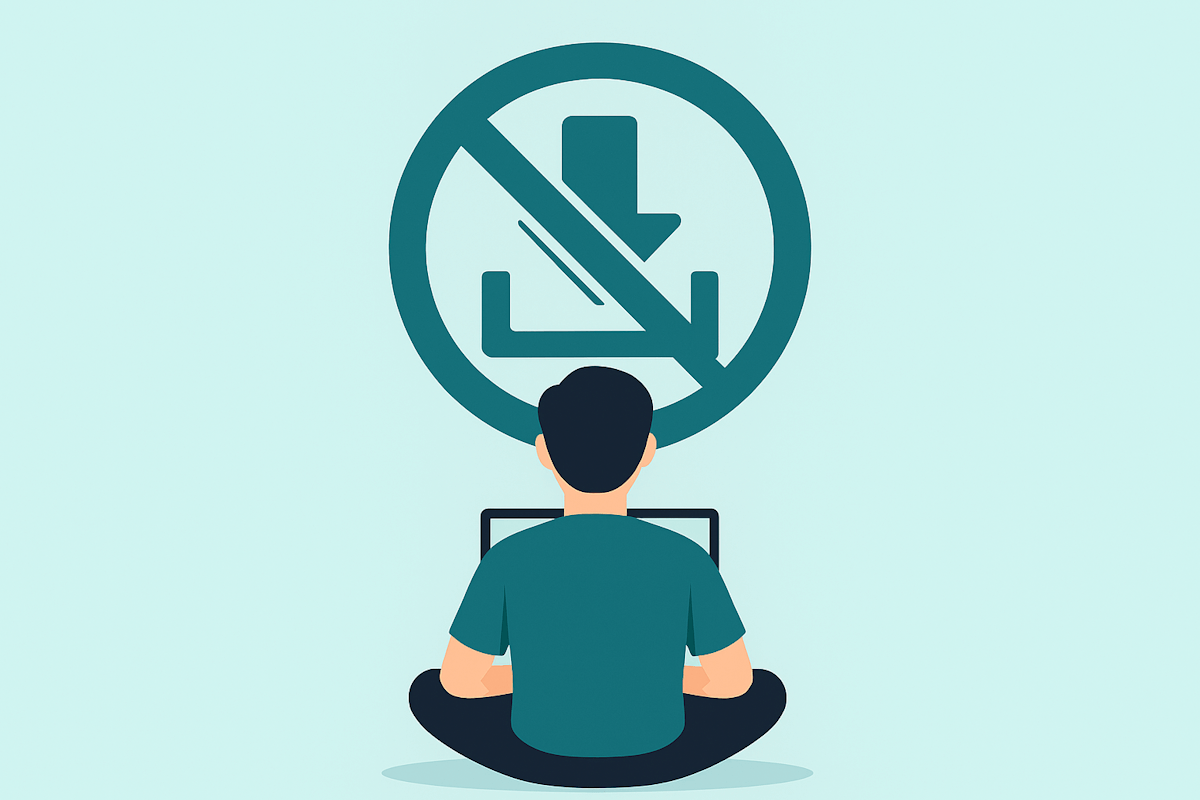
Blocking file downloads in SharePoint is one of those requests that sounds simple and turns complex very quickly.

It usually starts with a reasonable concern. Sensitive documents. External users. Unmanaged devices. A clear instruction from security or legal: ‘People should be able to read this, but they shouldn’t be able to download it.’

For years, the honest answer was uncomfortable. You could make downloads harder, but you couldn’t truly block them without workarounds, custom permission levels, or conditional access gymnastics. And even then, the guarantees were weak.

That changed with the introduction of the Block download policy for SharePoint and OneDrive, part of SharePoint Advanced Management. This is the first supported, platform‑level way to enforce browser‑only access to files, without redesigning your permission model or relying on unsupported UI tricks.

Block Files Download SharePoint

(more…)

Quick Steps in SharePoint Document Libraries: Why This One Actually Changes the Experience

When I published my article about the new Quick Steps column type in Microsoft Lists, the focus was on how Microsoft is slowly reshaping the way users interact with data. Not through big announcements or radical redesigns, but through small, practical touches that remove friction from everyday work.

The same Quick Steps column type is also available in SharePoint document libraries. That detail matters, because libraries are not just another container. They are where real work happens, where files move, get reorganized, shared, duplicated, and increasingly questioned. Seeing Quick Steps land here feels less like feature reuse and more like intent.

SharePoint Document Libraries Quick Actions

(more…)

Relearning the Basics: Getting Comfortable With the New SharePoint Document Libraries

Microsoft has been rolling out a refreshed look for SharePoint Document Libraries, aligning them more closely with the new OneDrive experience. Visually, it’s clean, modern, and unquestionably consistent with Microsoft’s current design language. Functionally… well, things have moved. A lot.

If you’ve been following my Pulse updates, you already know I’m not exactly the biggest fan of these changes, not because they’re bad, but because they’ve forced me to retrain my own muscle memory. After years of going straight to the same corner of the screen to create files, switch views, or open filters, suddenly realizing “oh… it’s not there anymore” is incredibly frustrating.

That said, change happens, and once you understand where everything went, the new experience is usable, even if it comes with extra clicks. So in this article, I want to walk you through the basic functionality that has moved, hidden itself, or changed behavior. If you’re still learning your way around the new libraries, this guide will save you a bit of time (and annoyance).

New SharePoint document libraries

(more…)

Introducing document libraries templates in SharePoint

SharePoint is a powerful tool for managing and collaborating on documents, but sometimes it can be hard to create a document library that suits your needs. That’s why I’m excited to announce that SharePoint now has document libraries templates out of the box!

With document libraries templates, you can easily create a document library with a scenario relevant structure, metadata, and content types – all to save you time and maintain broader consistency across your content management organization.

Document libraries templates in SharePoint

(more…)


I've been working with Microsoft Technologies over the last ten years, mainly focused on creating collaboration and productivity solutions that drive the adoption of Microsoft Modern Workplace.

Trending Posts